Service Opus supports three accounting modes: Native Accounting, QuickBooks Online integration, and Xero integration. Each company runs one active mode at a time, and that mode controls which accounting tabs, settings, mappings, sync queues, and finance workflows are visible in the app.
See it in action
Accounting mode selection answers a core operating question: where do the books live? Native Accounting keeps financial control inside Service Opus. QuickBooks Online and Xero modes keep Service Opus as the operational system while exporting accounting-ready records to the connected provider.
Choose the Right Accounting Mode
Mode
Best for
System of record
Primary setup work
Native Accounting
Companies that want Service Opus to own the accounting workspace.
Service Opus
Chart of accounts, tax setup, posting rules, banking, close workflow, and finance review.
QuickBooks Online
Companies already using QBO for accounting but running operations in Service Opus.
The screenshots above follow the same order as this guide. They show mode selection first, then the most important workspaces for each mode.
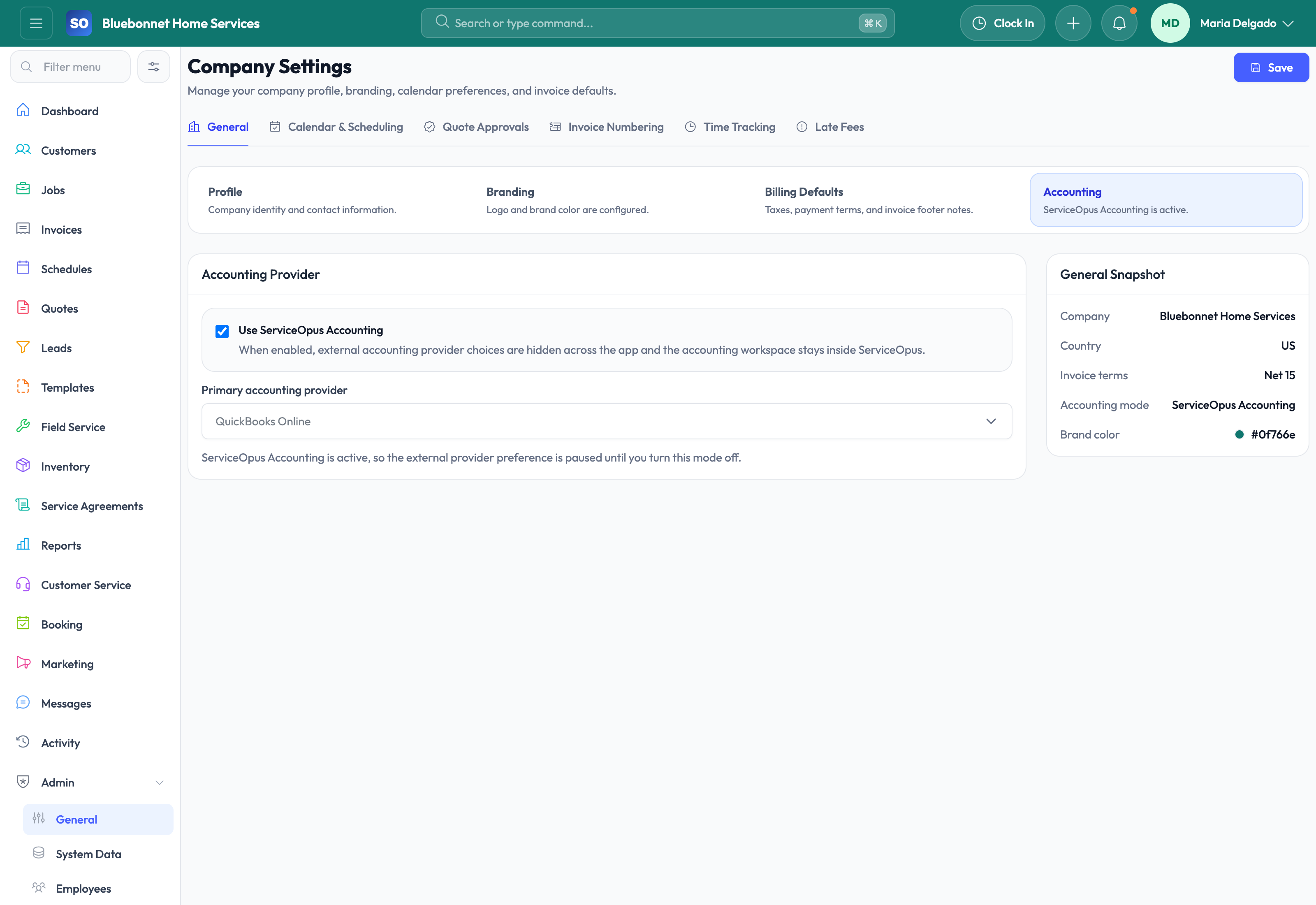
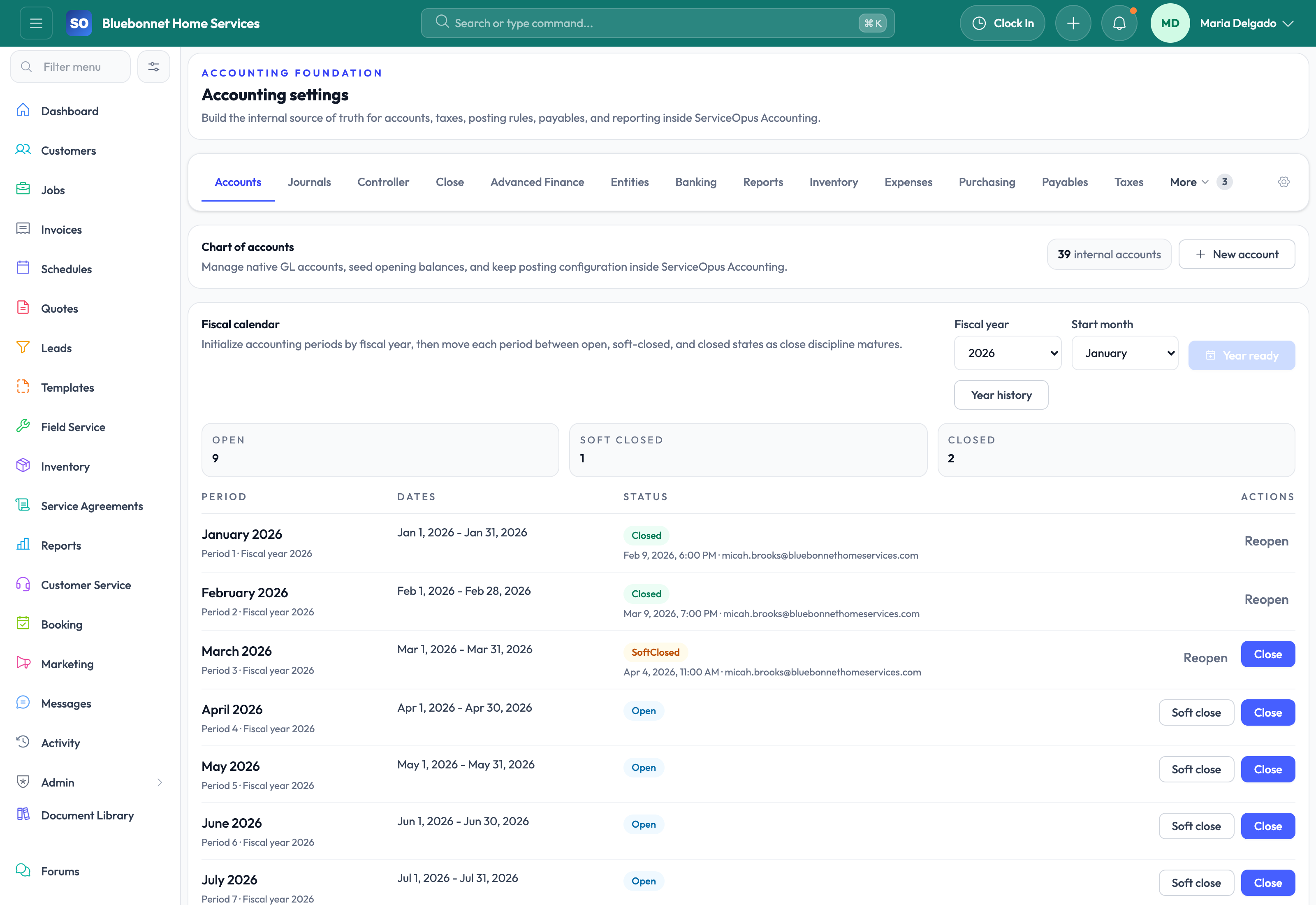
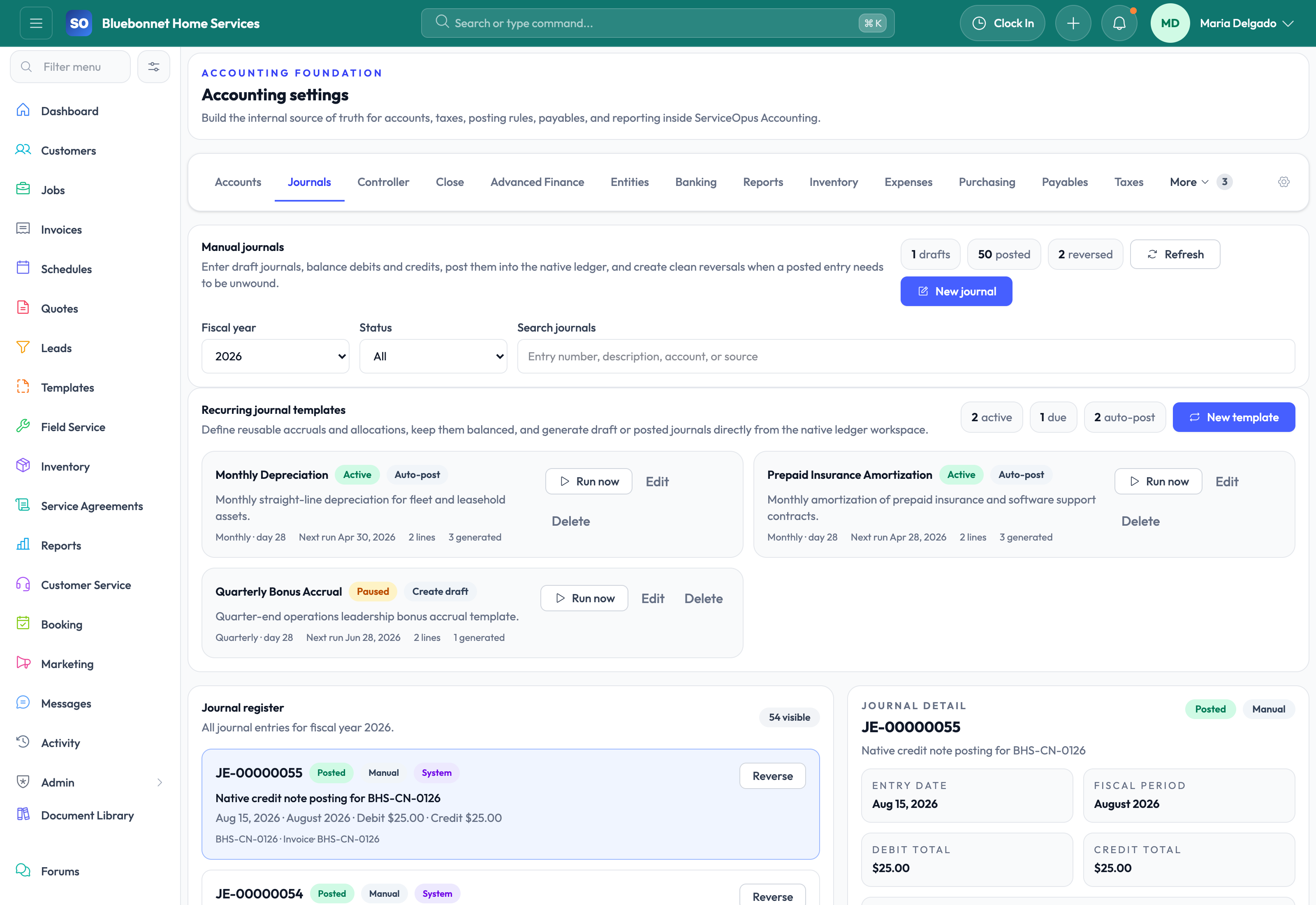
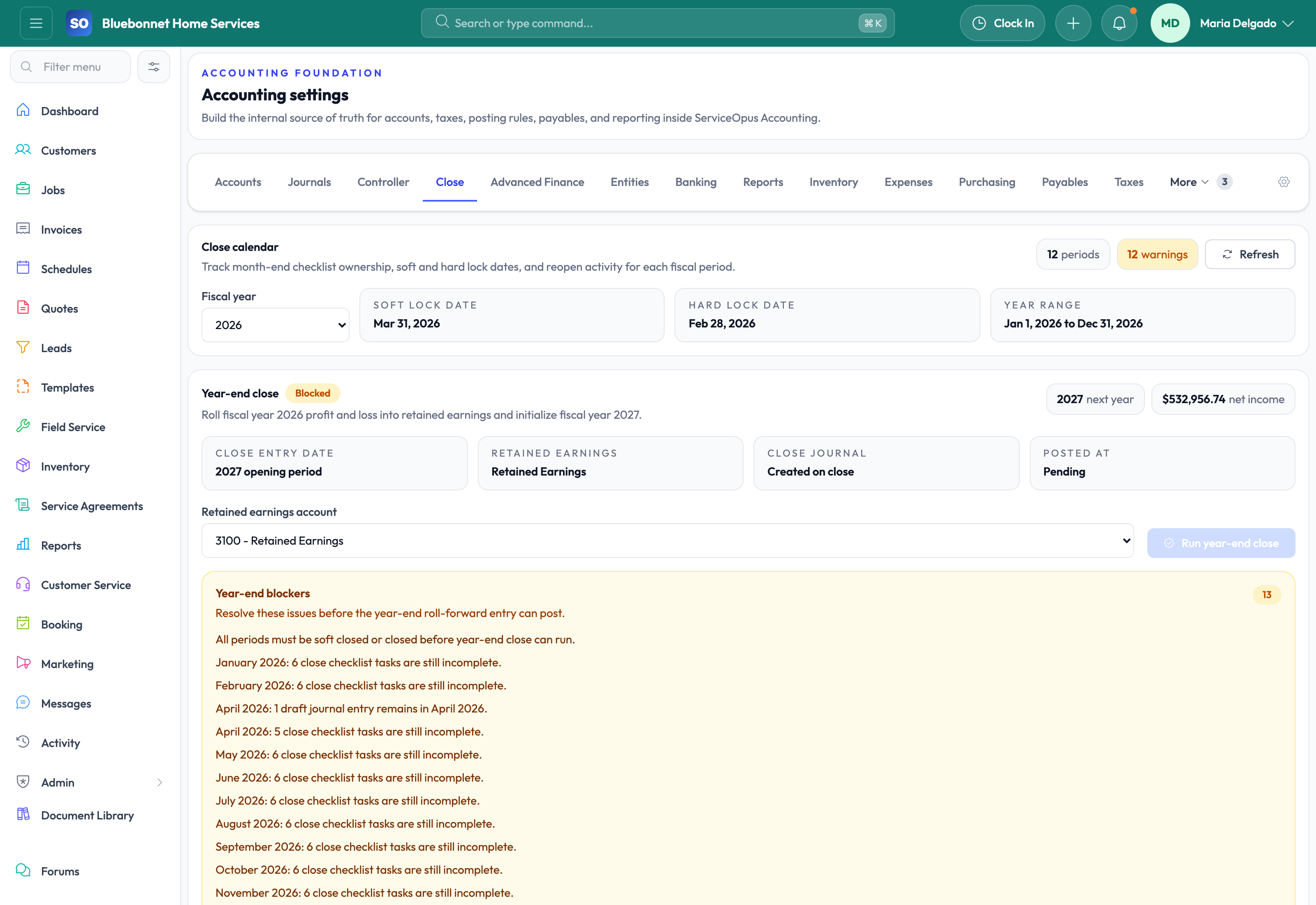
Native Accounting: Company Settings mode selection, chart of accounts, journal review, and period close.
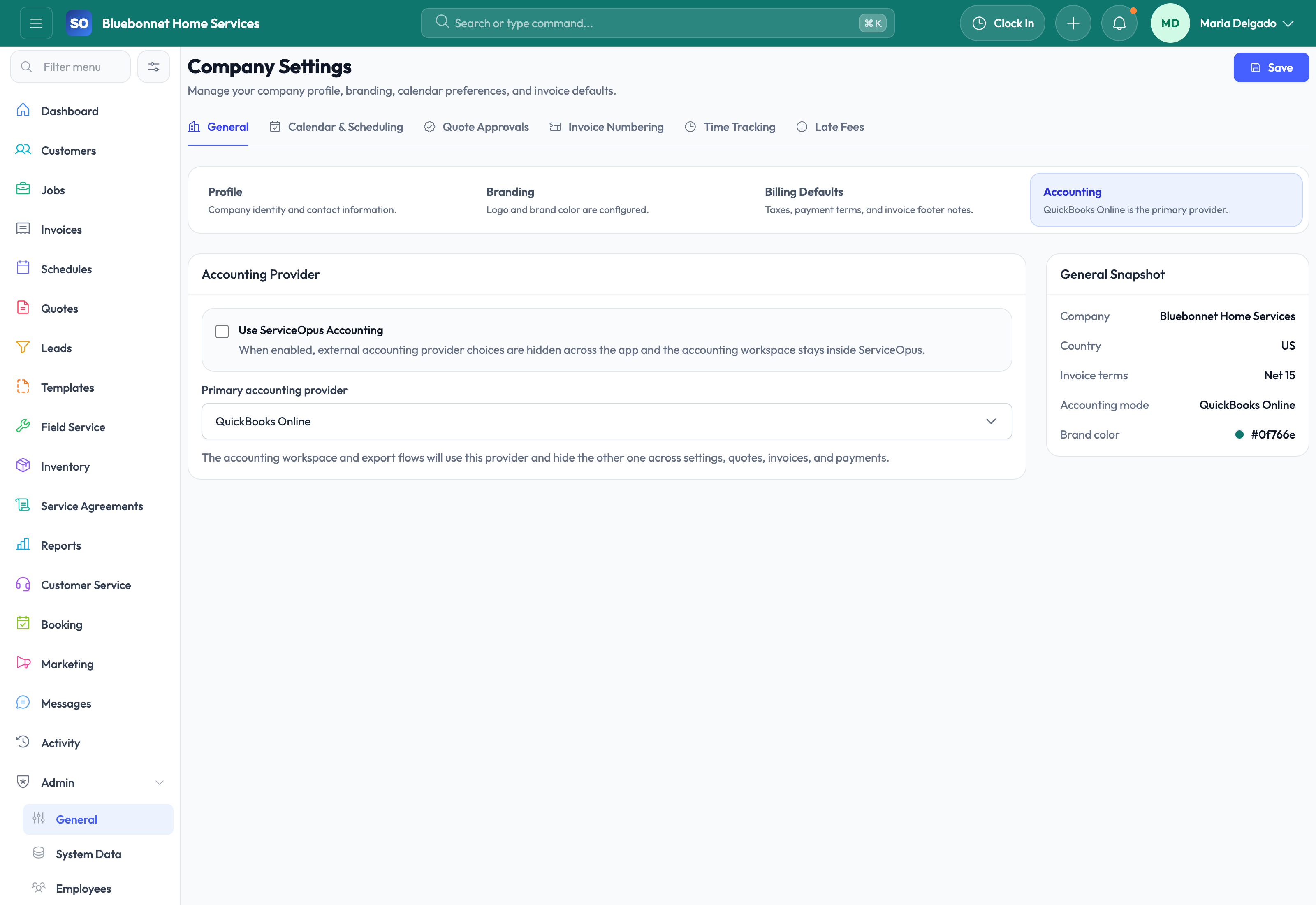
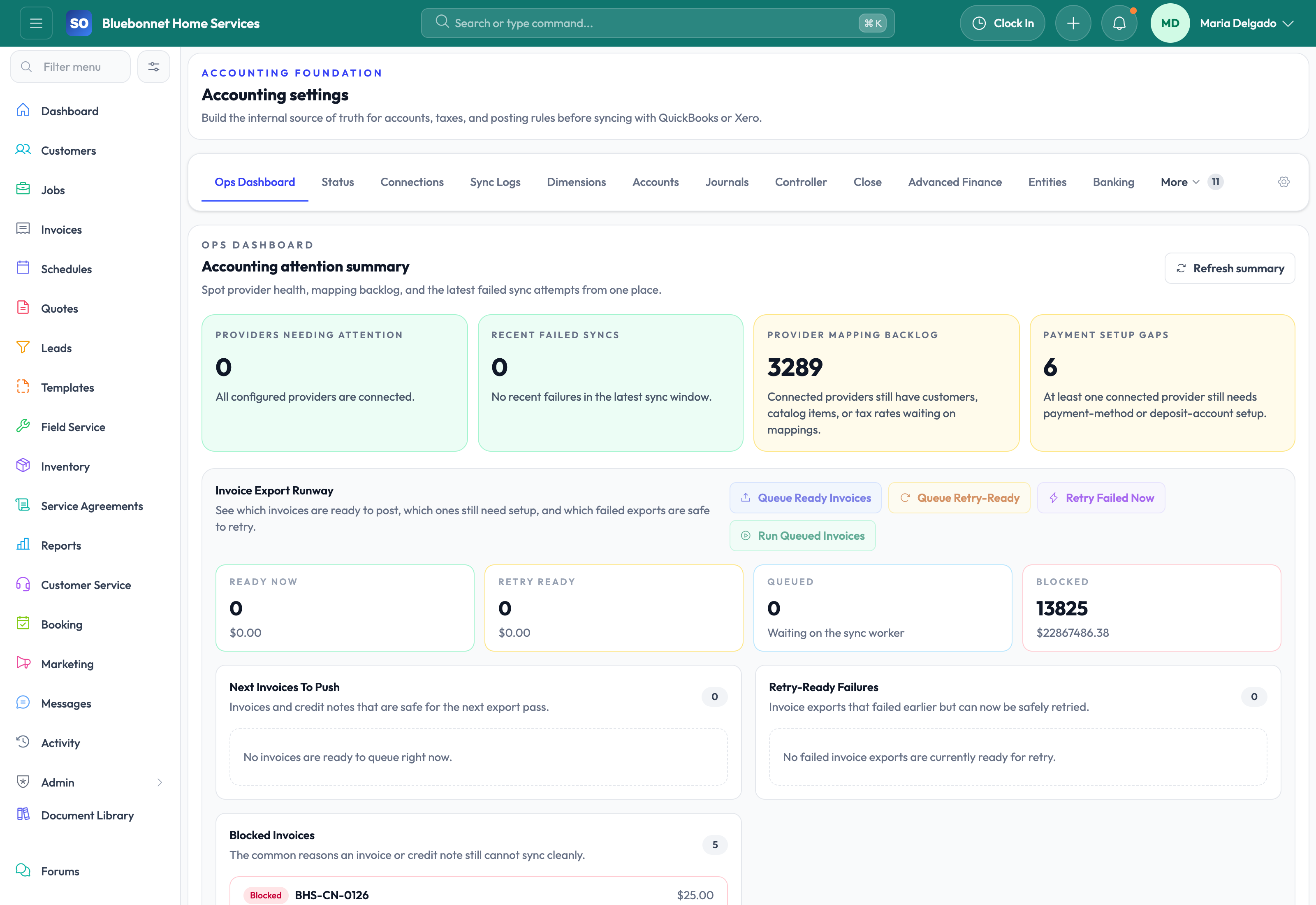
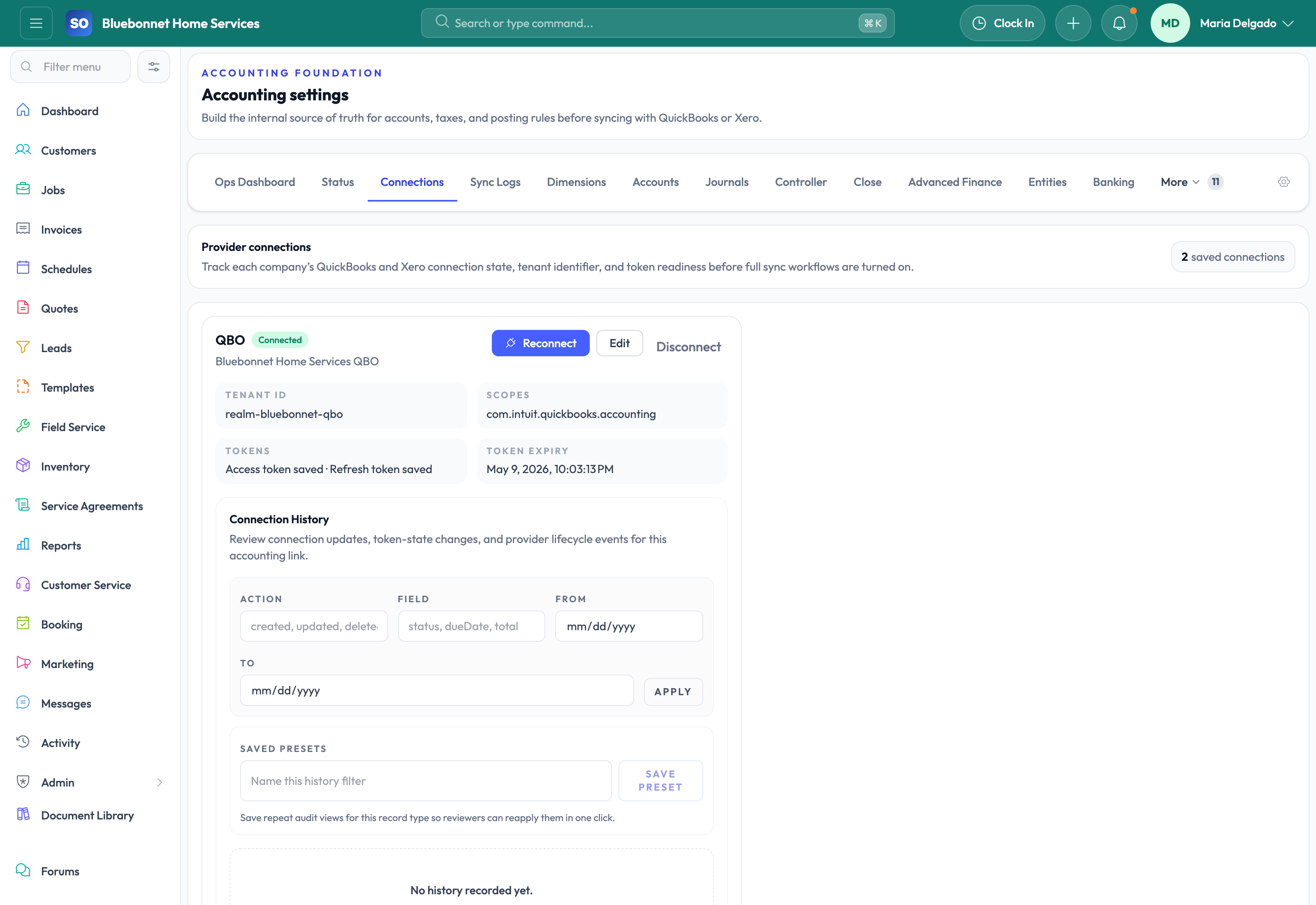
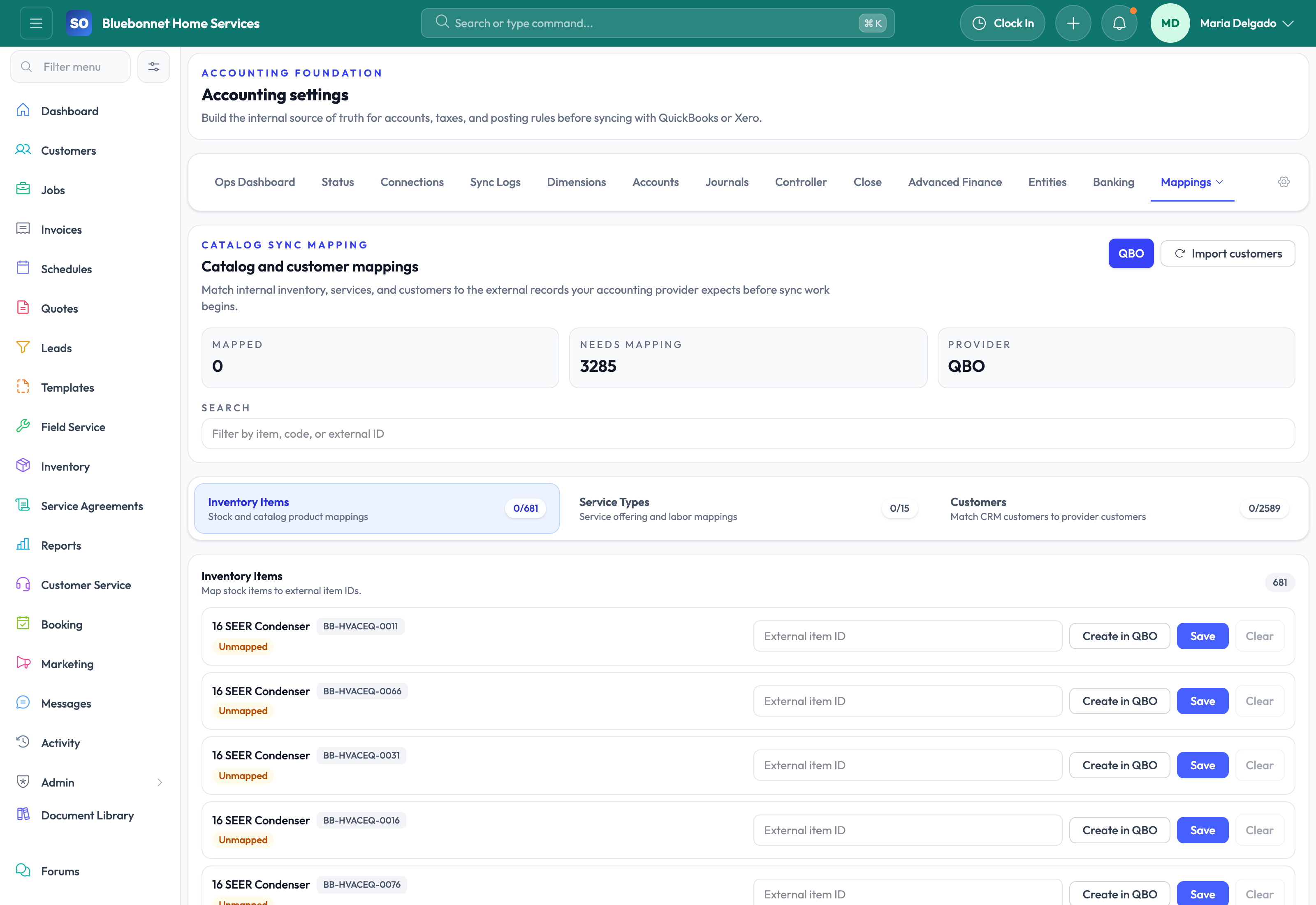
QuickBooks Online: Company Settings mode selection, accounting operations dashboard, provider connection, and provider mappings.
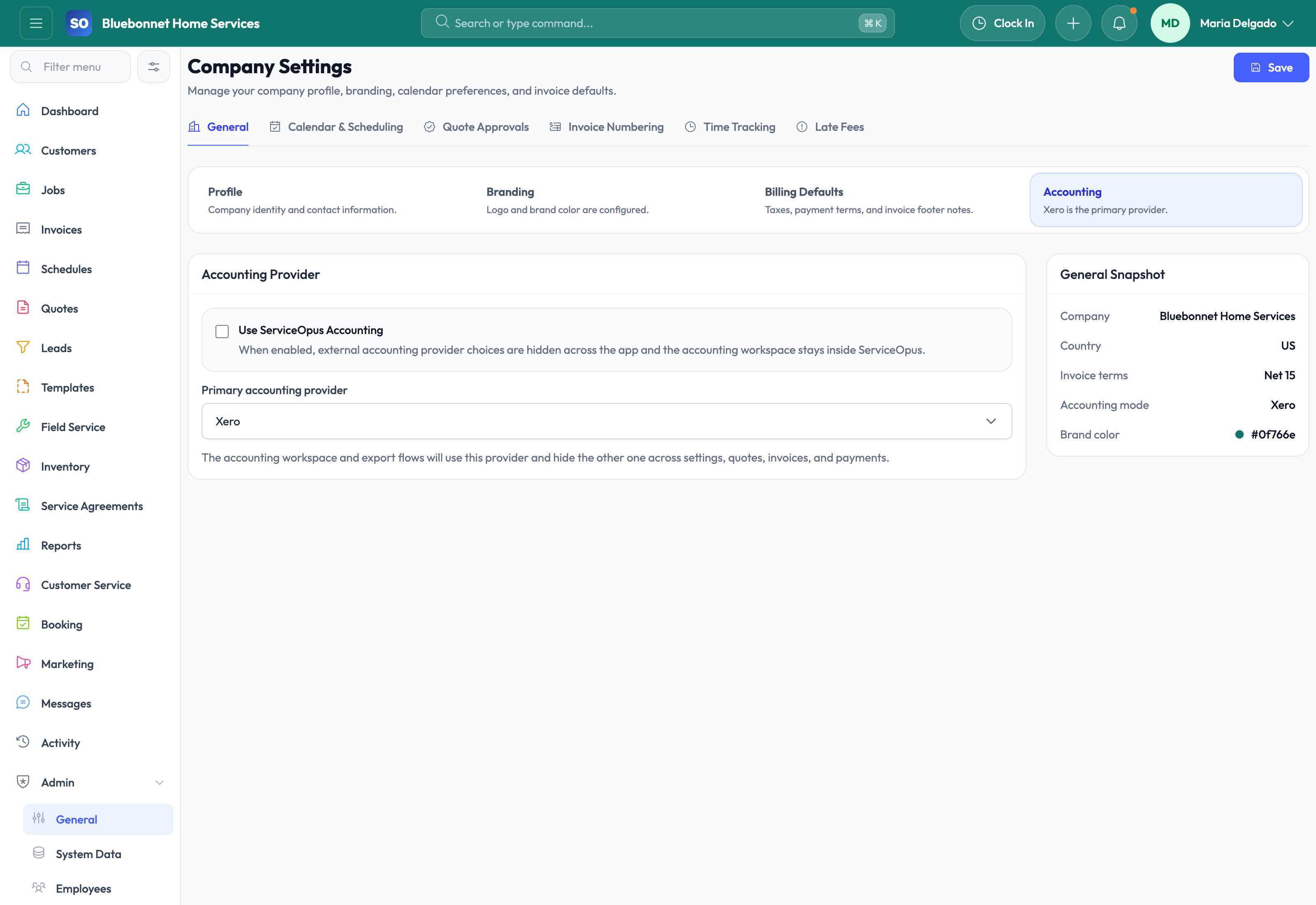
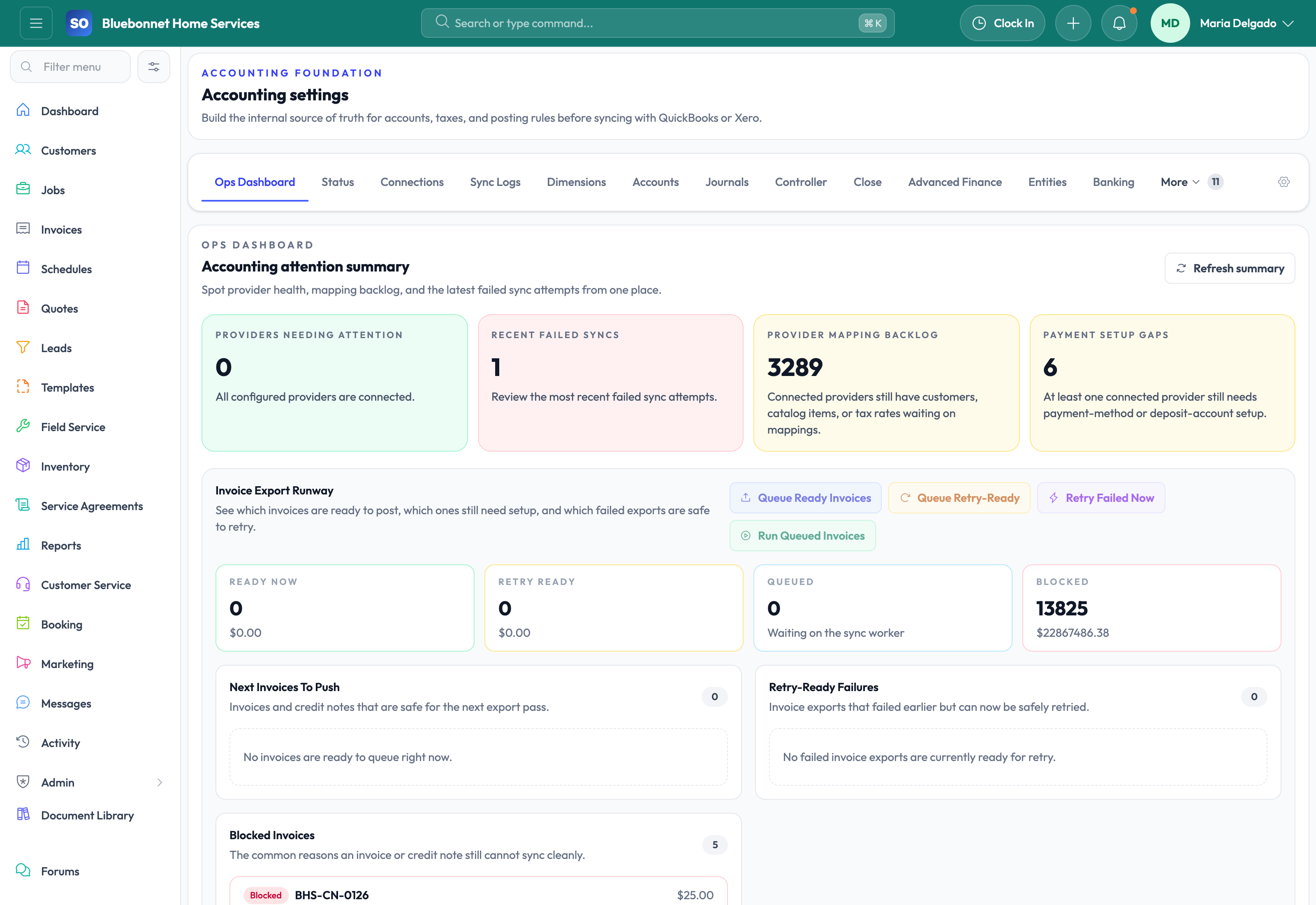
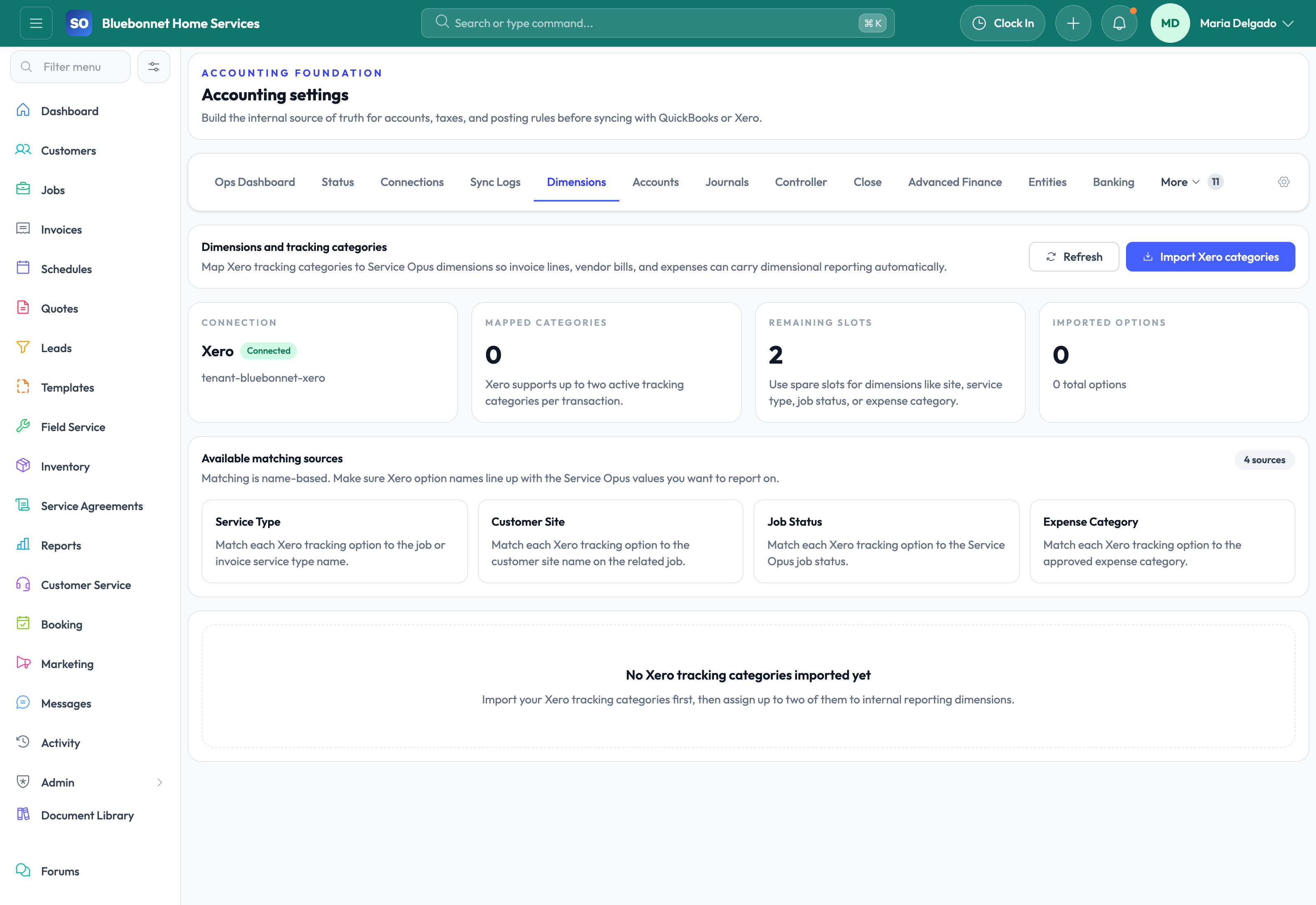
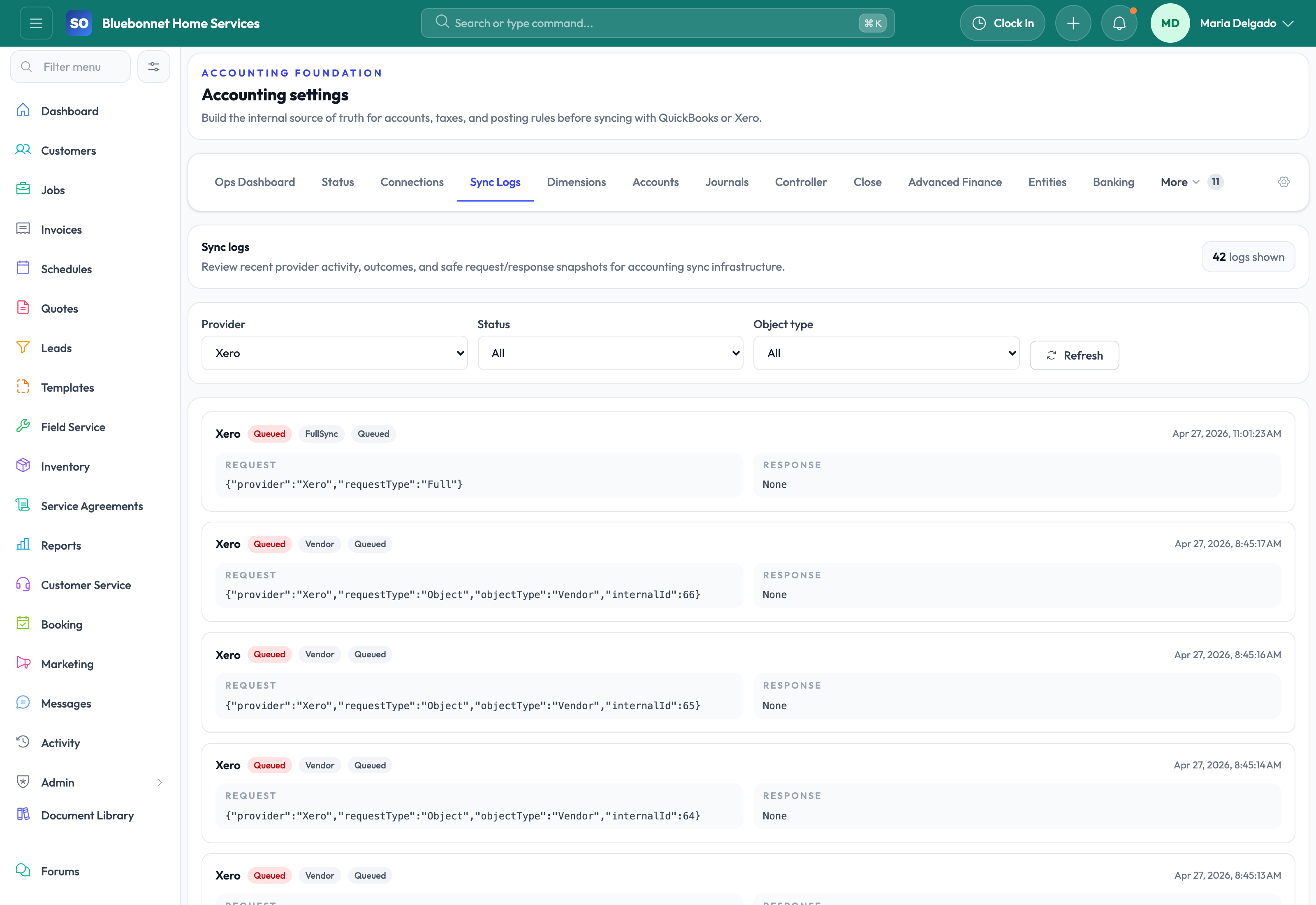
Xero: Company Settings mode selection, accounting operations dashboard, tracking-category dimensions, and sync logs.
Business Needs It Solves
Clear ownership: Office and finance teams can see whether Service Opus, QBO, or Xero is the active accounting system.
Provider-safe setup: QBO and Xero use separate provider labels, mappings, dimensions, and troubleshooting paths.
Cleaner exports: Readiness checks expose missing customers, items, accounts, tax codes, payment methods, and terms before sync.
Month-end control: Journals, failed exports, reconciliation issues, unmapped records, and close tasks can be reviewed before they become cleanup work.
Operational continuity: Quotes, jobs, invoices, payments, inventory, and expenses continue to live in Service Opus regardless of accounting mode.
Switch Accounting Modes
Open Settings > General.
Open the Accounting section.
For Native Accounting, enable Use ServiceOpus Accounting.
For QuickBooks Online, disable Use ServiceOpus Accounting, choose QuickBooks Online, then save.
For Xero, disable Use ServiceOpus Accounting, choose Xero, then save.
Reload the app after saving so menus, route guards, provider labels, and accounting workspaces reflect the active mode.
Important: Avoid switching modes while invoices, payments, bills, or journals are queued for posting or sync. Finish the current queue, resolve failures, save the new mode, and reload the app before capturing new accounting activity.
Mode 1: Native Accounting
Use Native Accounting when Service Opus should be the accounting workspace. This mode is best for companies that want one system for operations, ledger setup, financial review, reconciliation, and close.
When to Use Native Accounting
The company does not want QBO or Xero to be the accounting system of record.
Finance users need chart of accounts, journals, tax setup, banking, reconciliation, and close inside Service Opus.
Leadership wants operational and financial reporting to use the same internal data model.
The team wants less provider-specific mapping and fewer external sync dependencies.
Setup Guide
Enable Use ServiceOpus Accounting in Company Settings.
Review or create the chart of accounts for revenue, assets, liabilities, expenses, inventory, taxes, and bank accounts.
Review posting rules for invoices, payments, credits, expenses, vendor bills, purchasing, and inventory adjustments.
Confirm opening balances, bank accounts, reconciliation responsibilities, and close responsibilities.
Run a finance review before the first close period to confirm journals are balanced and source documents are traceable.
Daily Workflow
Create operational records in the normal flow: leads, quotes, jobs, invoices, payments, purchase orders, expenses, and inventory activity.
Use accounting workspaces to review generated entries, source documents, account impact, and posting exceptions.
Use the journal view for balanced entries and audit context.
Use close tools to review unresolved exceptions, required approvals, unposted records, reconciliation gaps, and period readiness.
Use reports to review revenue, costs, receivables, payables, inventory value, job profitability, and period performance.
Native Accounting Screenshots
Company Settings: Confirms Native Accounting is selected.
Chart of Accounts: Shows the internal GL structure used by Service Opus.
Journals: Shows balanced posting entries and review context.
Close: Shows period readiness and controller review.
Mode 2: QuickBooks Online Integration
Use QBO mode when QuickBooks Online remains the financial system of record. Service Opus prepares and validates operational records, then exports accounting-ready customers, invoices, payments, and related records to QBO.
When to Use QBO
The company already uses QuickBooks Online for accounting and reporting.
Service Opus is used for customers, jobs, quotes, invoices, payments, inventory, and field operations.
Finance users want readiness checks before invoices and payments reach QBO.
The office needs clear export status, failure reasons, retry actions, and provider mappings.
Setup Guide
Disable Use ServiceOpus Accounting in Company Settings.
Select QuickBooks Online as the active provider and save.
Reload the app so QBO labels and integration routes are active.
Open the accounting connection workspace and confirm the QBO tenant, token status, and connection health.
Map customers, catalog items, income accounts, deposit accounts, tax codes, payment methods, and payment terms.
Review readiness checks before exporting invoices or payments.
Use sync queues and logs to export ready records, retry failures, and resolve mismatches.
Daily Workflow
Continue creating customers, quotes, jobs, invoices, and payments in Service Opus.
Review the accounting operations dashboard for blocked records, unmapped objects, queue counts, and provider health.
Resolve mapping gaps before running exports.
Export invoices and payments when readiness checks pass.
Use sync logs to review successes, failures, retries, request context, response context, and provider IDs.
QBO Screenshots
Company Settings: Confirms QBO is the active provider.
Operations Dashboard: Shows provider health, queues, readiness, and blocked records.
Connections: Shows QBO connection and tenant status.
Mappings: Shows customer, catalog, tax, and GL alignment.
Mode 3: Xero Integration
Use Xero mode when Xero remains the accounting system of record. Xero mode follows the same export-control pattern as QBO mode, but it exposes Xero-specific setup such as tenant status, account codes, tax rates, and tracking-category dimensions.
When to Use Xero
The company already uses Xero for accounting and financial reporting.
Service Opus should manage operational work while Xero receives accounting records.
Finance users need Xero tracking categories or account-code alignment.
The team needs sync logs, retries, mismatch handling, and provider-aware troubleshooting.
Setup Guide
Disable Use ServiceOpus Accounting in Company Settings.
Select Xero as the active provider and save.
Reload the app so Xero labels, route guards, and provider tabs are active.
Open the accounting connection workspace and confirm the Xero tenant, token status, and connection health.
Import or review Xero account codes, tax rates, contacts, items, payment terms, and tracking categories.
Map Service Opus customers, catalog items, tax setup, revenue accounts, deposit accounts, expense accounts, and payment methods to Xero records.
Use readiness checks and sync logs before exporting invoices, payments, bills, or expenses.
Daily Workflow
Use Service Opus for the operational flow: lead, quote, job, invoice, payment, purchase, expense, and service history.
Review Xero-specific mapping and dimension requirements before export.
Use the operations dashboard for queue health and readiness.
Use sync logs for export attempts, provider IDs, mismatches, failures, retry results, and audit support.
Resolve tracking-category and tax-code issues before month-end reporting.
Xero Screenshots
Company Settings: Confirms Xero is the active provider.
Operations Dashboard: Shows provider health, queues, readiness, and blocked records.
Dimensions: Shows Xero tracking-category setup.
Sync Logs: Shows export history, failures, retries, and troubleshooting context.
Records Shared Across Modes
The active accounting mode changes accounting behavior, but the operational records stay consistent. Customers, sites, quotes, jobs, invoices, payments, expenses, vendors, inventory, documents, and history remain connected across Service Opus.
Invoices: Created from jobs, quotes, recurring billing, or manual billing workflows.
Payments: Recorded against invoices and shown in customer history and receivables views.
Catalog and inventory: Used for estimating, purchasing, materials, job costing, and accounting mappings.
Customers: Matched or mapped to provider records in QBO and Xero modes.
Audit history: Tracks mode-relevant actions, sync activity, posting activity, failures, retries, and user changes.
Troubleshooting
The wrong accounting tabs are visible: Save the desired mode in Settings > General, then reload the app.
Provider labels look wrong: Confirm Use ServiceOpus Accounting is disabled and the expected provider is selected.
Exports are blocked: Check missing customer, item, account, tax, payment method, payment term, or dimension mappings.
QBO or Xero connection is unhealthy: Reconnect the provider, confirm tenant access, and review token status.
Month-end is not ready: Review queued exports, failed sync logs, unposted entries, reconciliation exceptions, and close tasks.
Operating Checklist
Before Native Accounting: Confirm chart of accounts, tax setup, posting rules, opening balances, bank accounts, reconciliation workflow, close owners, and reporting expectations.
Before QBO: Confirm QBO company connection, imported provider records, tax code strategy, payment methods, payment terms, item mappings, customer matching, income accounts, and deposit accounts.
Before Xero: Confirm Xero tenant connection, tracking categories, tax rates, account codes, contacts, item mappings, payment terms, and bank or deposit accounts.
Before exporting: Resolve mapping backlog, failed readiness checks, missing tax codes, missing payment setup, and provider mismatch warnings.
Before close: Review sync logs, reconciliation exceptions, pending journals, unmatched payments, unposted transactions, unresolved exports, and close tasks.
Why This Matters
A single active accounting mode prevents mixed-provider setup and gives every team the same answer about where accounting work happens. Office users keep operating in Service Opus, finance users get the right controls for the active mode, and owners get a cleaner path from completed work to financial visibility.
User Guide
Choose and operate the active accounting mode: Native Accounting, QuickBooks Online integration, or Xero integration.
Best For
Finance and accounting users deciding where the books are maintained.
Admins switching between Native Accounting, QBO, and Xero modes.
Managers reviewing accounting readiness, posting status, sync failures, and close risk.
Before You Start
Decide whether Service Opus, QuickBooks Online, or Xero is the active accounting system.
For Native Accounting, prepare chart of accounts, taxes, posting rules, banking, reconciliation, and close workflow.
For QBO or Xero, connect the provider and confirm company, tax, account, payment, customer, and item mappings.
Reload the app after saving a mode change so hidden tabs and provider-specific workflows refresh.
Recommended Workflow
Open Settings > General > Accounting and confirm the selected mode.
Use Native Accounting tabs for accounts, journals, controller review, close, banking, reconciliation, payables, purchasing, inventory accounting, and reports.
Use QBO mode for QuickBooks connection status, readiness checks, mappings, sync queues, retries, and export logs.
Use Xero mode for Xero connection status, tracking categories, mappings, sync queues, retries, and export logs.
Resolve mapping, tax, payment, provider, or journal exceptions before month-end review.
Review Checklist
The active mode matches the company accounting process.
No invoices or payments are exported with missing mappings or invalid tax setup.
Native postings, journals, and close tasks are reviewed before reports are trusted.
QBO or Xero sync failures are resolved before month-end review.
Finance users understand which system is authoritative for each object.
Common Handoffs
Invoicing and Payments for invoice and payment source data.
Inventory for item and purchasing context.
Settings and Config for accounting defaults.
History and Audit for change review.
Ready to apply this workflow?
Use the guide to evaluate fit, then start a trial or talk through how Service Opus maps to your team, trade, and current operating process.